Learning Objectives
After completing this lesson, you'll be able to:
- Create and export FME Flow Projects.
- Identify and handle item dependencies in Projects.
- Describe the implications of system encryption alongside Projects.
In this lesson, you will:
- Optional: Watch a demonstration video (if you have not attended the live training).
- Scroll down to read the activity instructions below and follow the steps in your lab.
- Complete the quiz at the end of this lesson.
- Click 'Next' to mark the lesson complete.
Learning Objectives
After completing this lesson, you'll be able to:
- Create and export FME Flow Projects.
- Identify and handle item dependencies in Projects.
- Describe the implications of system encryption alongside Projects.
In this lesson, you will:
- Optional: Watch a demonstration video (if you have not attended the live training).
- Scroll down to read the activity instructions below and follow the steps in your lab.
- Complete the quiz at the end of this lesson.
- Click 'Next' to mark the lesson complete.
Resources
If you're taking a live Safe Software-hosted training course or using an on-demand lab for this course, we've already imported the content for this lesson into your FME Flow.
If you're completing this lesson with your own FME Flow, you must import the starting project with the content into your FME Flow.
See FME Flow Authoring: Instructions to Import the Starting Project for directions to import the project to your own FME Flow.
- Starting project | C:\FMEData\Resources\FlowAuthoring\fme-flow-authoring--starting-project.fsproject
- Encryption key | C:\FMEData\Resources\FlowAuthoring\fme-flow-authoring--key.jceks
Share Content Through Projects
Projects group FME Flow items that share a common solution, or 'project', in your organization. Projects let you reference all items in a workflow in one easy place and can include just about any FME Flow item.
The main advantage of using projects is that they allow you to easily transfer content between FME Flow instances, which is essential when migrating across various stages of development (from development to testing to production servers).
Projects also allow you to share multiple items simultaneously. Compiling a project enables you to package all required workspaces, repositories, files, and other components into a single .fsproject file. You can share the project file with other users within a Flow instance or export and import it into other Flow instances.

Encryption was introduced to FME Flow in 2023.1 and is something to be aware of when importing and exporting projects between different FME Flow instances. The default encryption mode setting is “Standard,” which applies a custom encryption key specific to your FME Flow installation.
If you are using a Safe Software-provided machine for the Flow Authoring course the Flow Instance will be set to "Weak." For more information please see our System Encryption Documentation.
Creating Projects
From the side menu, Projects opens a list of current projects on FME Flow and gives you options to create, import, and export projects. When you click Create, FME Flow displays a form you fill out with information about your project. You must give each project a name and description, then you may optionally add versioning and a Readme text file for more information about your project.
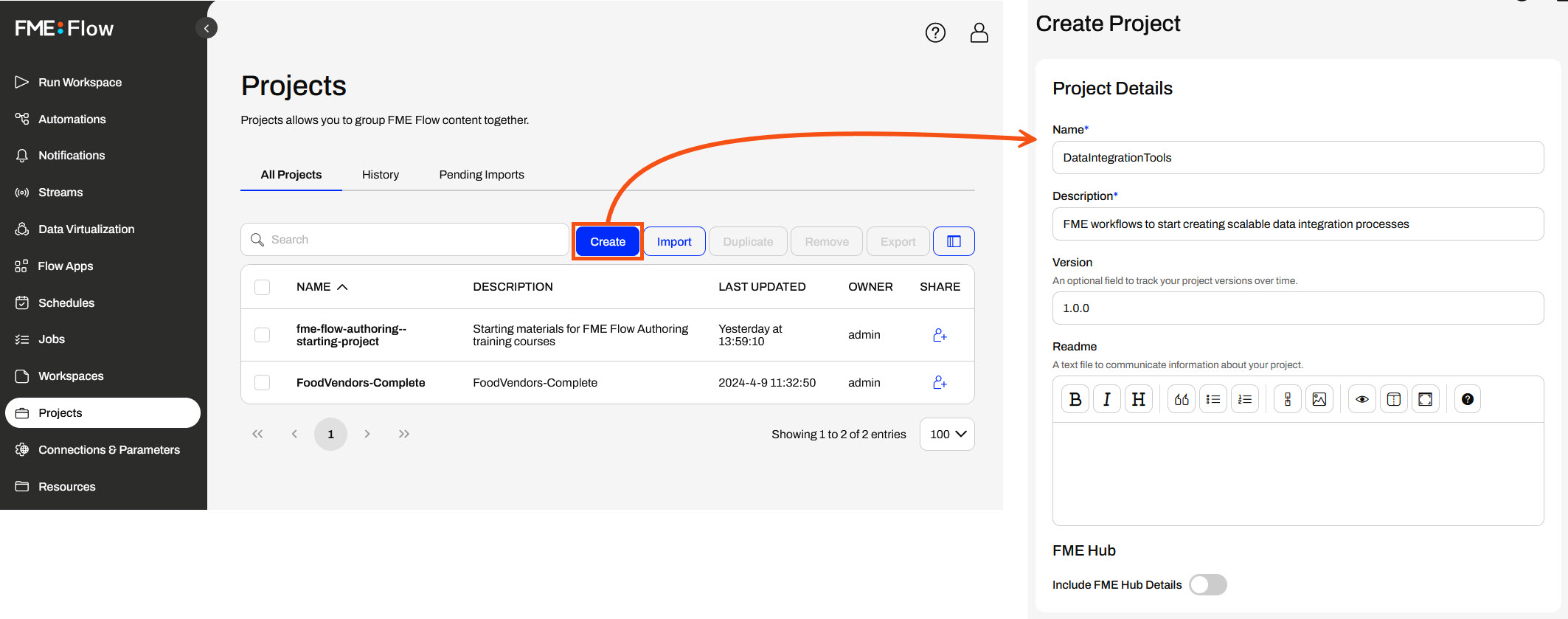
The Include FME Hub Details option allows you to enter your FME Hub details and upload this project to the Hub.
The FME Hub has over 1300 community-contributed items for you to use in your FME workflows. For more information on the FME Hub, check out hub.safe.com.
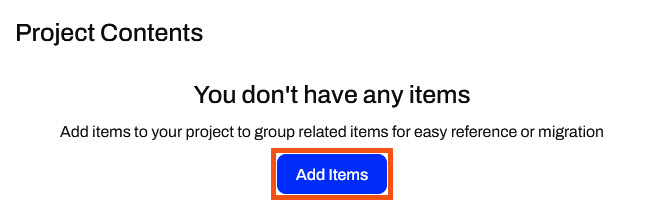
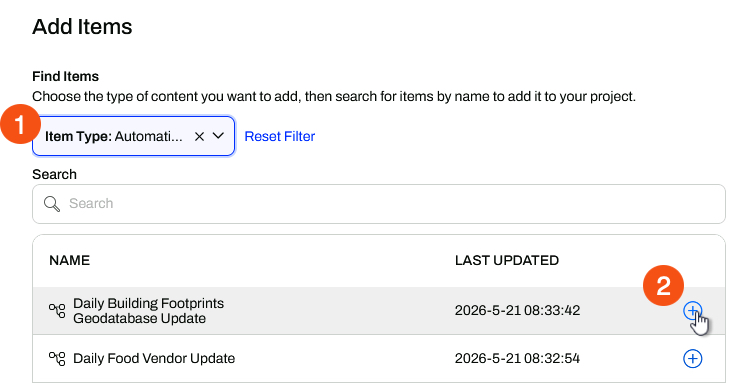
The Project Contents section is where you add and view FME Flow items to your project. The Add Items option opens a window where you select the Item Type and then add individual items to the project.
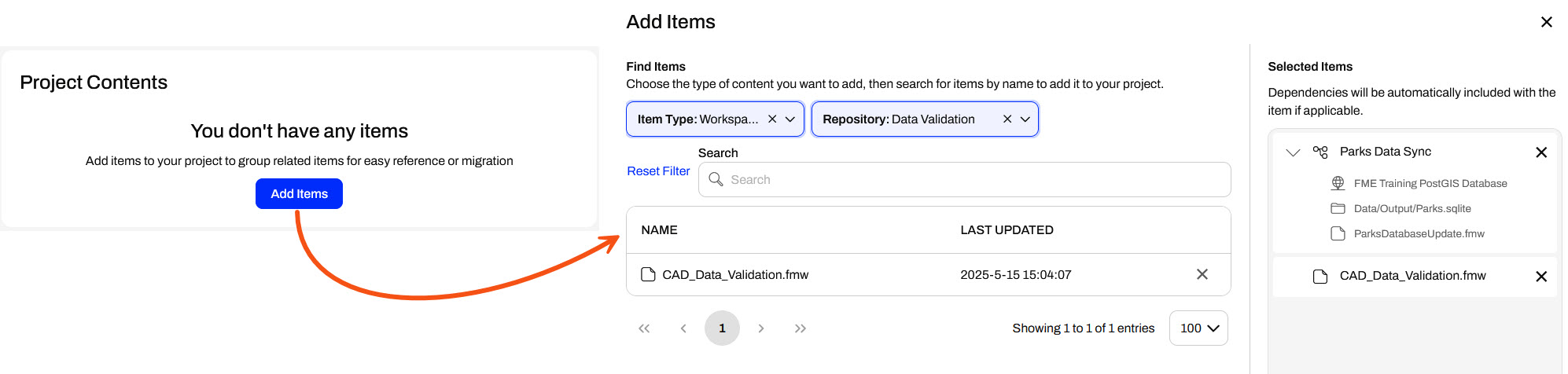
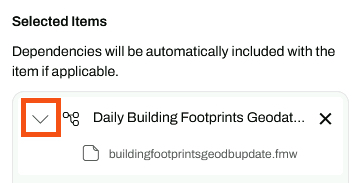
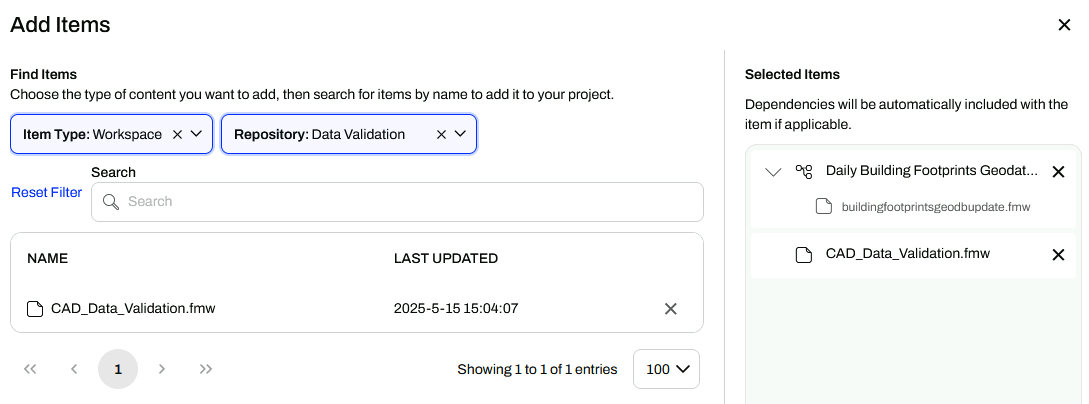
Once you add an item, FME Flow lists it and its dependencies under Selected Items on the right side. Once you've added your items, remember to scroll down and confirm with the Add Items button. If you close the Add Items window, FME Flow won't add the items to your project.
You can only include some items, such as tokens and workspace apps, if you are the owner. You can set permissions for other roles accordingly to allow access to items you do not own. For more information, please see Getting Started with FME Flow Projects.
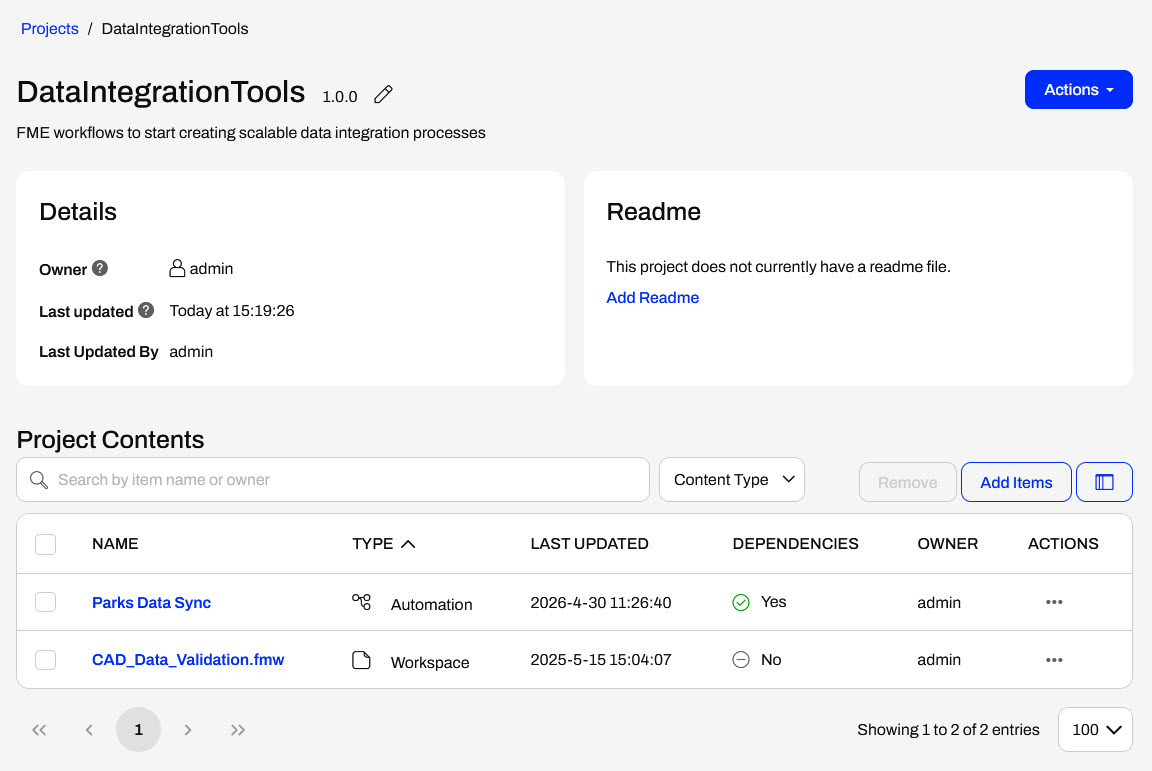
After you create your project, FME Flow displays all details about it, including the items you added. If you want to add more items to your project, you can reopen the window from the Add Items button under Project Contents.
Project Item Dependencies
When you add items that require additional FME Flow items to function, FME Flow automatically includes those items in your project as dependencies. Dependencies may include web or database connections to run a workspace, workspaces that are part of an Automation, or any other items necessary to run the workflow.
When you add an item with dependencies, FME Flow lists them in the expandable section of Selected Items for that item.
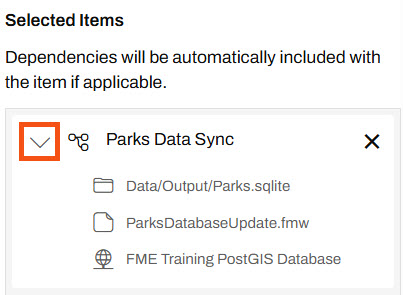
For example, the Parks Data Sync Automation has three dependencies: a Resources file, a workspace, and a database connection.
Once you create the project, you can view an item's dependencies in the Actions options.

FME Flow automatically includes dependencies in your project; however, you can exclude sensitive items such as connections and tokens when exporting the project. Additionally, users may choose to exclude sensitive dependencies when importing the project.
Exporting Projects
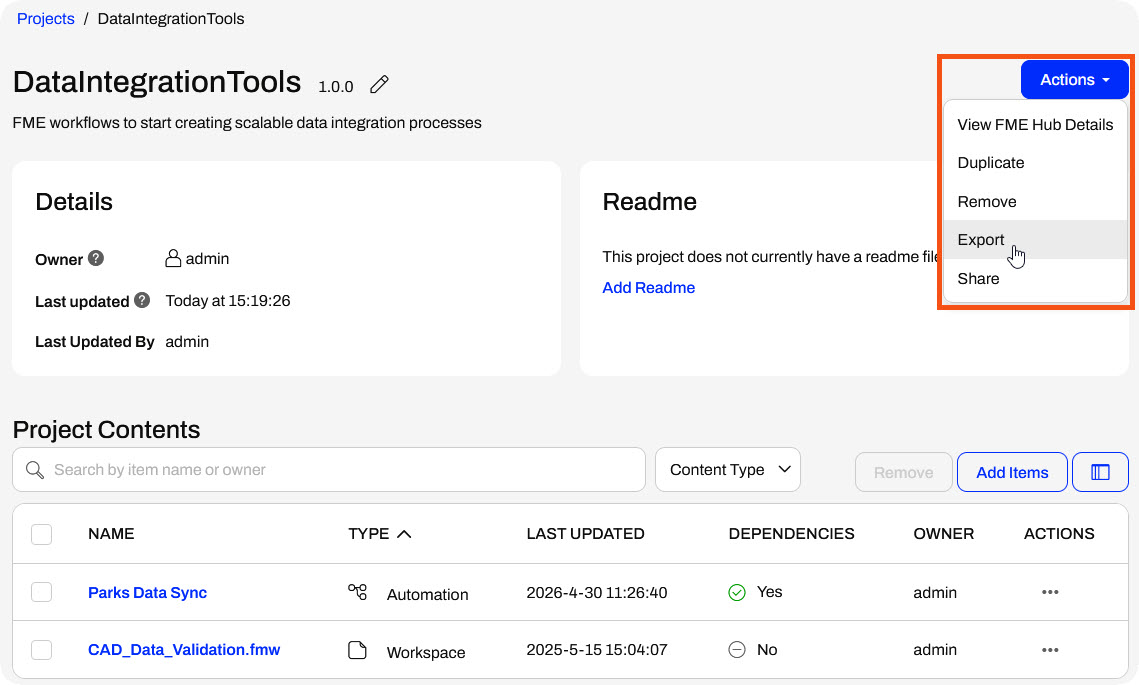
To export a project, you can begin the project export process from the open project itself or from the All Projects tab.
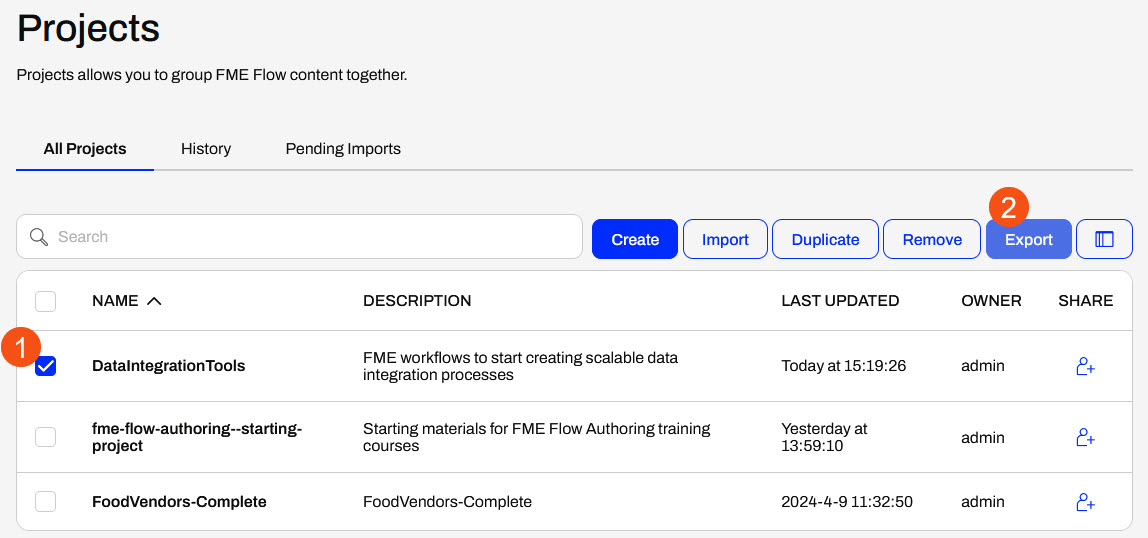
From the All Projects tab, you must select a single project, and then FME Flow enables the Export option.
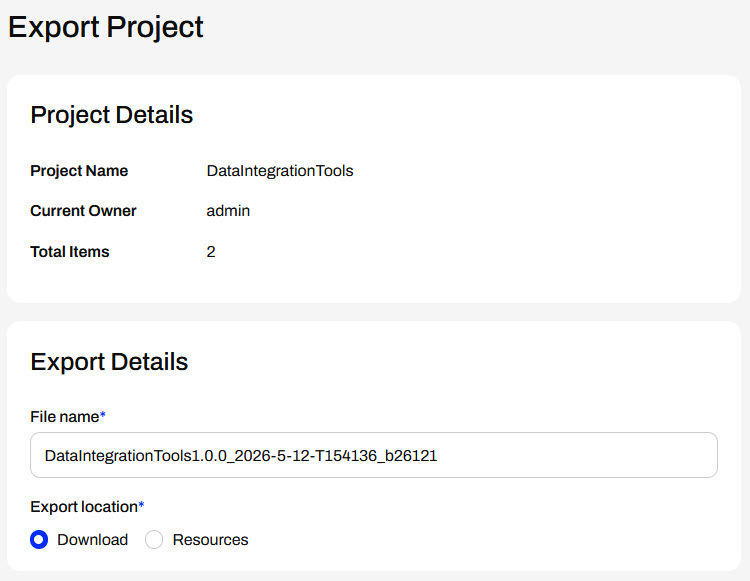
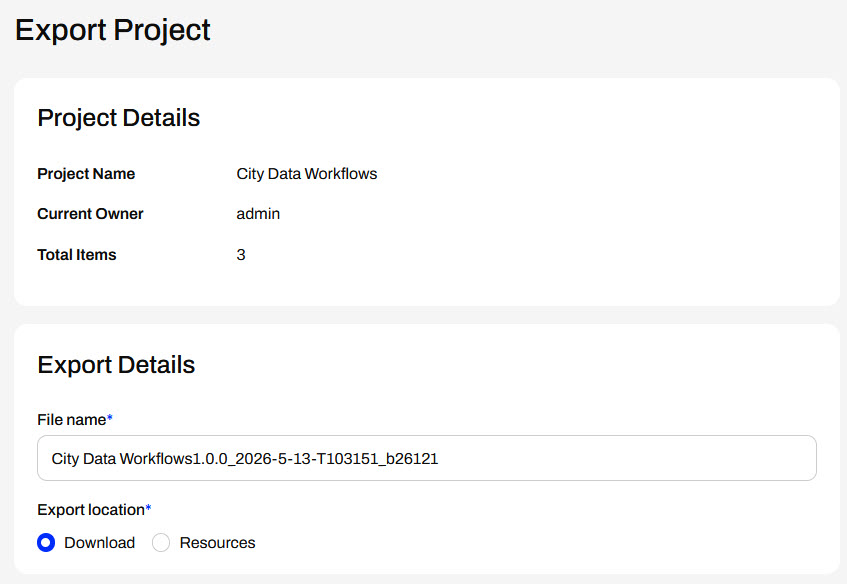
The Export Project page asks you to choose a project file name, set the project export location (either to FME Flow Resources or download to your computer), and configure Security Settings.
Security Settings gives an option to include sensitive information, such as users, tokens, connections, and anything else that would be sensitive to share between FME Flows from a security perspective. If you choose to include sensitive information, FME Flow will encrypt the project file, and you will need the system encryption key to import it into another FME Flow.
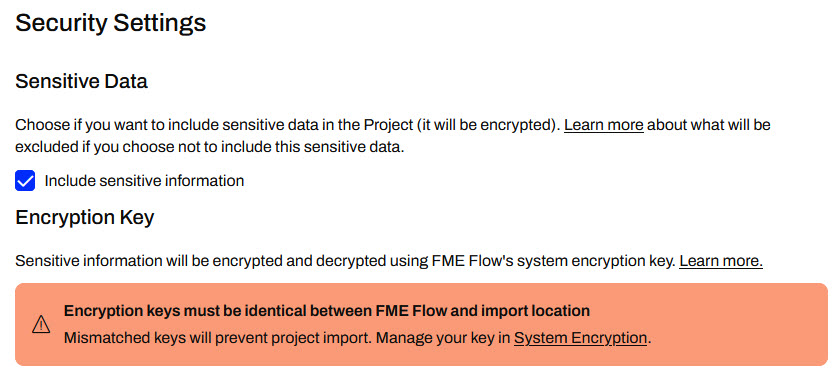
Security Settings are important to consider on your own FME Flow, and you should be aware of encryption requirements. Default encryption was introduced in FME Flow 2023.1 and in order to import projects containing sensitive information, the encryption key needs to match or be imported to FME Flow ahead of importing the project. Encruption settings are found in System Configuration > Security > System Encryption. For more information on this, please see our documentation on Encryption.
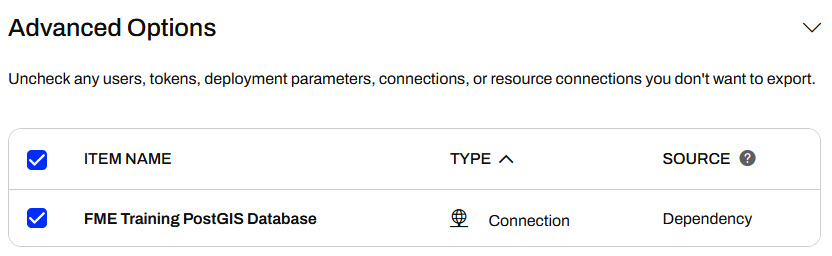
The Advanced Options section lets you exclude users, tokens, deployment parameters, connections, and resource connections from your project. You may want to exclude these for security reasons or to ensure these items remain unique to each FME Flow.
Once you click Export, FME Flow downloads your project or saves it to Resources, depending on your configuration.
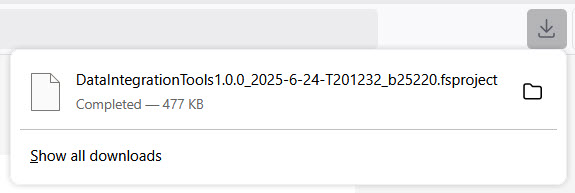
You can share the .fsproject file with others or import it into another FME Flow instance, such as moving FME Flow items between development and production FME Flow instances.
Exercise

Frank and his colleagues have successfully deployed some FME workflows on FME Flow. A neighboring municipality is also deploying FME Flow, and they've asked Frank to share some of their workflows for inspiration. To do this, Frank needs to prepare an FME Flow Project containing some of their workflows and then export it to share with the municipality.
For this exercise, follow these steps to create and export an FME Flow Project for Frank.
1) Create a Project
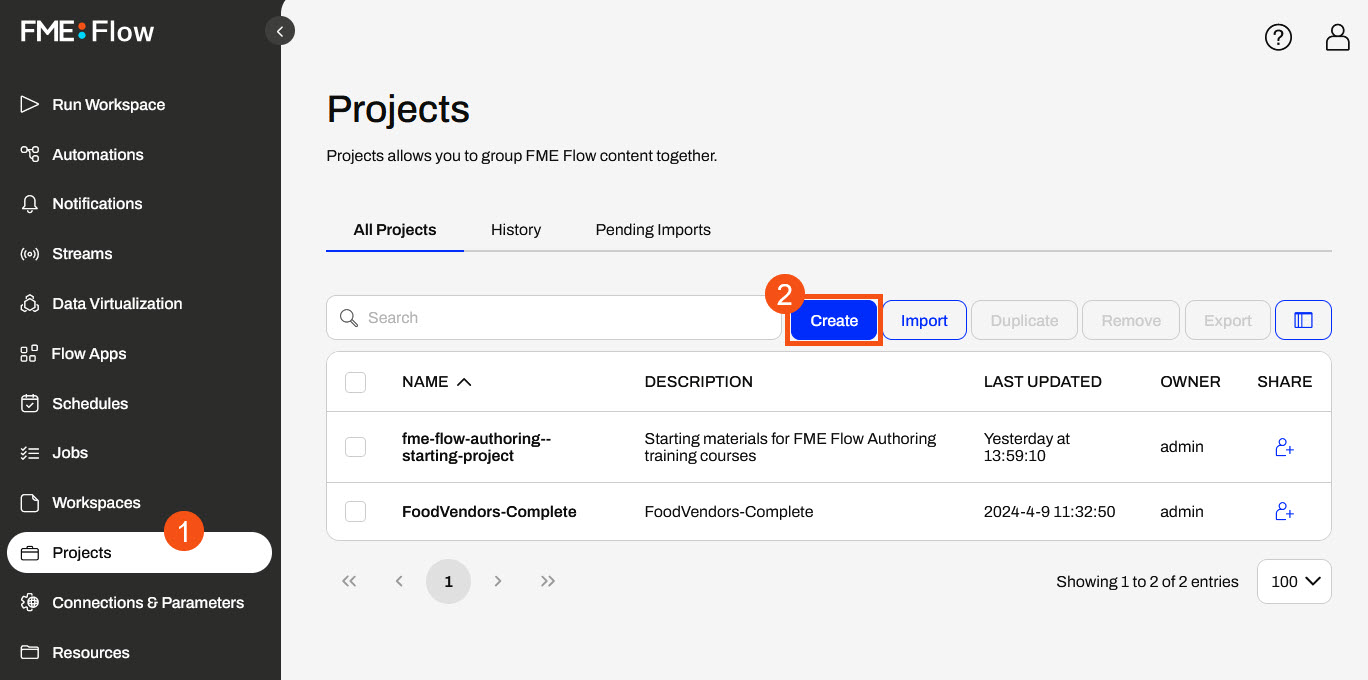
From the FME Flow side menu, open Projects. Click Create to make a new one.
Give the project a name, like City Data Workflows, and a description.
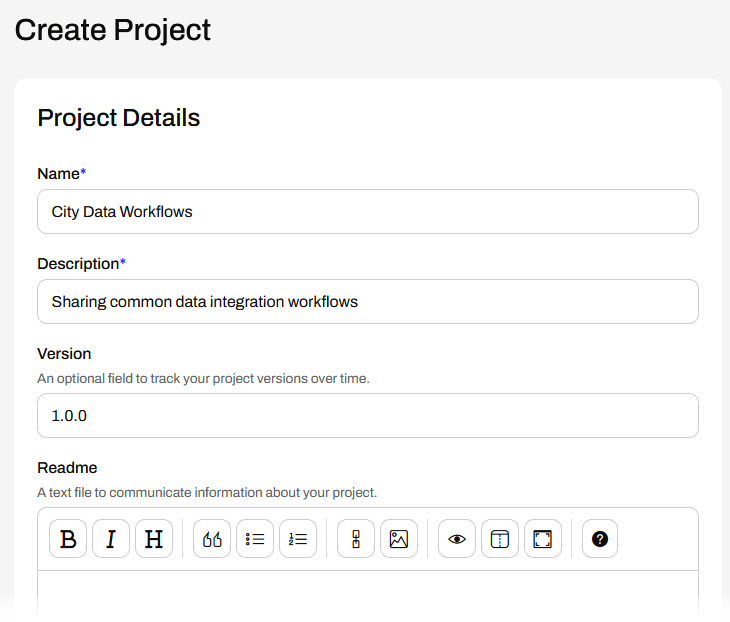
Scroll down and select Add Items.
2) Add Items to Project
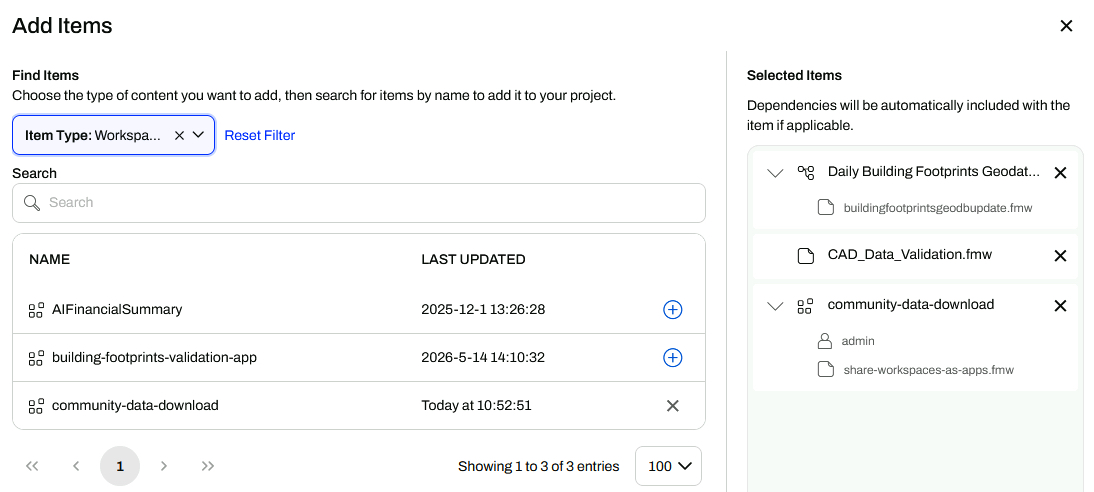
Under Item Type, select Automation, and FME Flow displays the automations on your FME Flow. Click the + icon to add the Daily Building Footprints Geodatabase Update automation to the project.
FME Flow adds the automation to the project on the right side under Selected Items. Expand it to see its dependencies.
Next, change the Item Type to Workspace and select the Data Validation repository. Add the CAD_Data_Validation.fmw workspace to the project. This workspace doesn't contain any dependencies, so FME Flow only adds the workspace to the Selected Items.
Optional: If you completed the previous lesson, Share Workspaces as Apps, add Jennifer's community-data-download Workspace App to the Project.
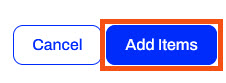
Scroll down in the window and click Add Items to finish and close the Add Items window.
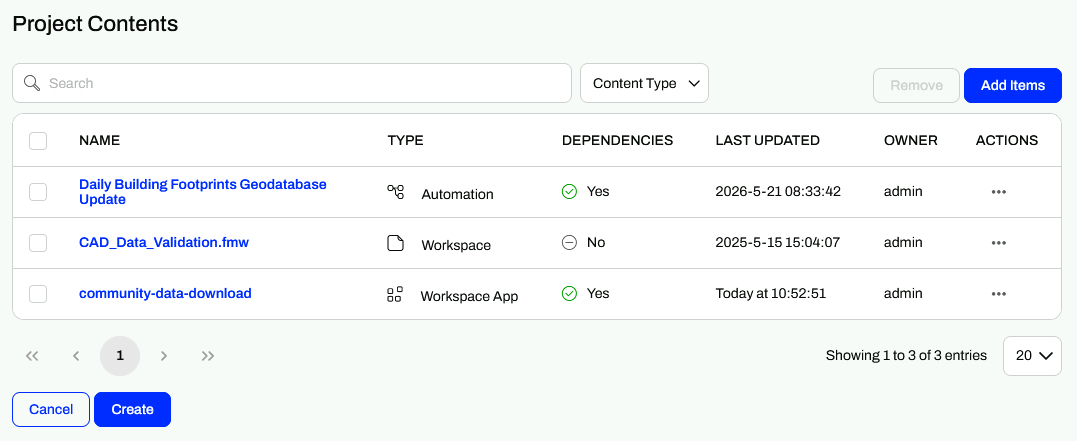
FME Flow lists the items under Project Contents. Click Create to finish creating the project.
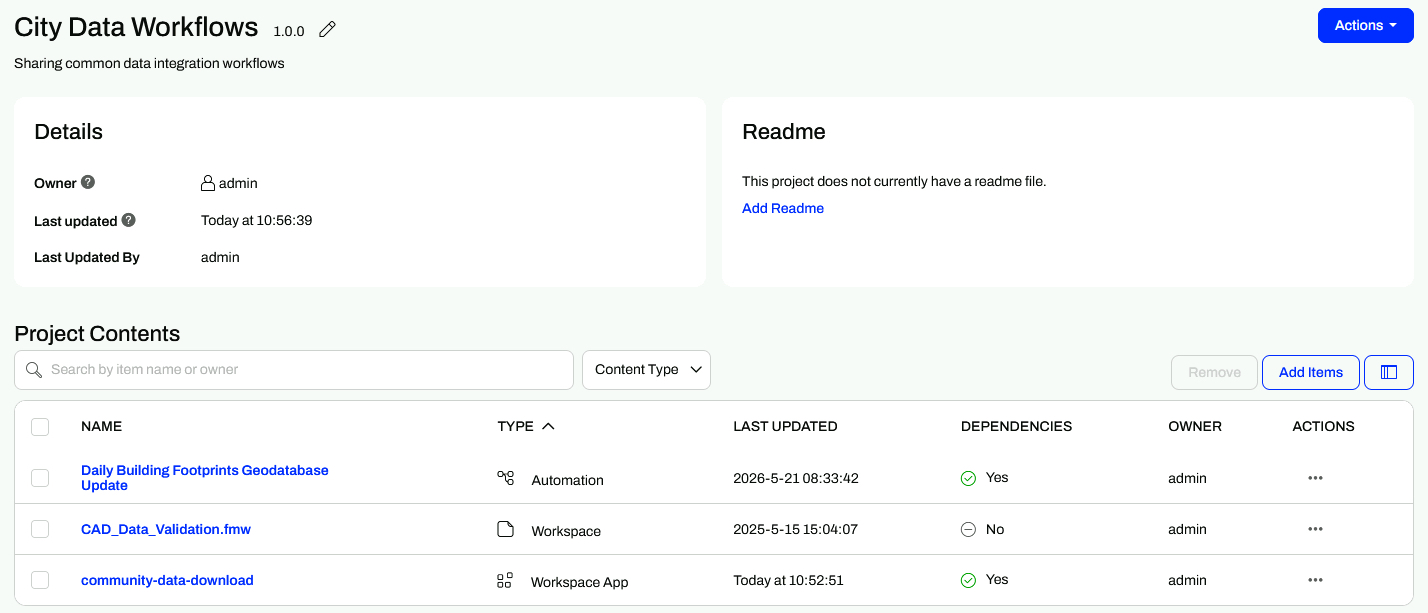
After you create the project, FME Flow displays an overview of the project.
3) Export Project
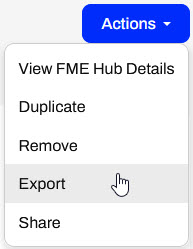
Expand Actions, then select Export to open the Export Project page.
Under Export Details, don't change any settings.
Under Security Settings, deselect the option to Include sensitive information. In Frank's scenario, he shouldn't share any sensitive or confidential information with the neighboring municipality.
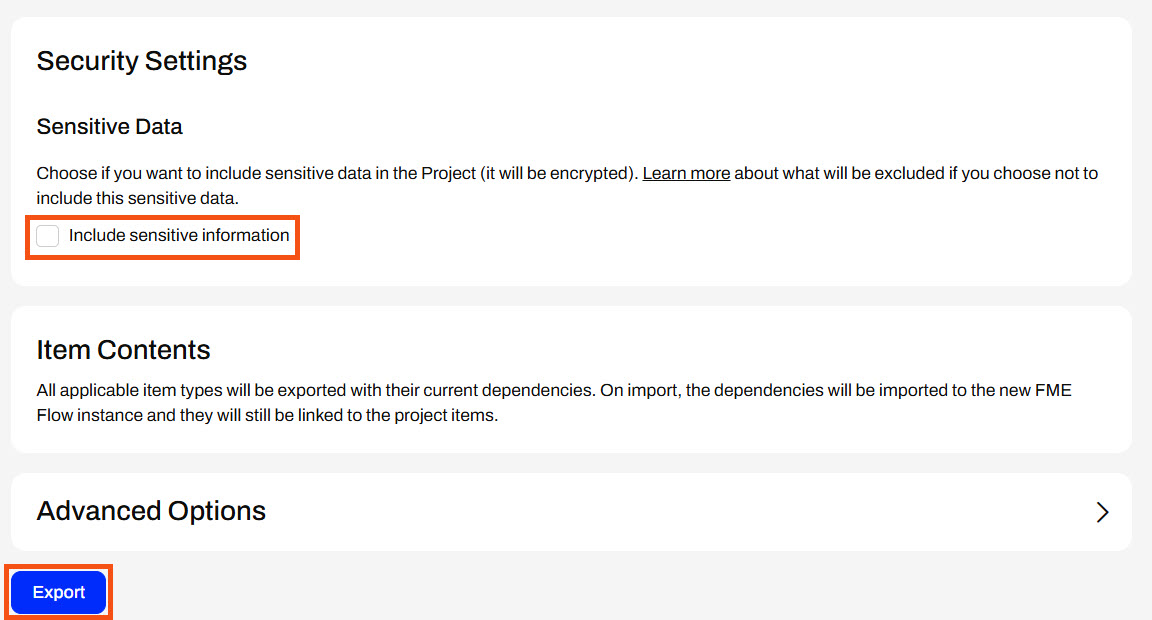
Click Export, and the project downloads immediately as an .fsproject file.
You've successfully created and exported a project on FME Flow. Frank can now share this project file with the neighboring municipality, and they can import it into their FME Flow.
Resources
If you're taking a live Safe Software-hosted training course or using an on-demand lab for this course, we've already imported the content for this lesson into your FME Flow.
If you're completing this lesson with your own FME Flow, you must import the starting project with the content into your FME Flow.
See FME Flow Authoring: Instructions to Import the Starting Project for directions to import the project to your own FME Flow.
- Starting project | C:\FMEData\Resources\FlowAuthoring\fme-flow-authoring--starting-project.fsproject
- Encryption key | C:\FMEData\Resources\FlowAuthoring\fme-flow-authoring--key.jceks
Share Content Through Projects
Projects group FME Flow items that share a common solution, or 'project', in your organization. Projects let you reference all items in a workflow in one easy place and can include just about any FME Flow item.
The main advantage of using projects is that they allow you to easily transfer content between FME Flow instances, which is essential when migrating across various stages of development (from development to testing to production servers).
Projects also allow you to share multiple items simultaneously. Compiling a project enables you to package all required workspaces, repositories, files, and other components into a single .fsproject file. You can share the project file with other users within a Flow instance or export and import it into other Flow instances.
Encryption was introduced to FME Flow in 2023.1 and is something to be aware of when importing and exporting projects between different FME Flow instances. The default encryption mode setting is “Standard,” which applies a custom encryption key specific to your FME Flow installation.
If you are using a Safe Software-provided machine for the Flow Authoring course the Flow Instance will be set to "Weak." For more information please see our System Encryption Documentation.
Creating Projects
From the side menu, Projects opens a list of current projects on FME Flow and gives you options to create, import, and export projects. When you click Create, FME Flow displays a form you fill out with information about your project. You must give each project a name and description, then you may optionally add versioning and a Readme text file for more information about your project.
The Include FME Hub Details option allows you to enter your FME Hub details and upload this project to the Hub.
The FME Hub has over 1300 community-contributed items for you to use in your FME workflows. For more information on the FME Hub, check out hub.safe.com.
The Project Contents section is where you add and view FME Flow items to your project. The Add Items option opens a window where you select the Item Type and then add individual items to the project.
Once you add an item, FME Flow lists it and its dependencies under Selected Items on the right side. Once you've added your items, remember to scroll down and confirm with the Add Items button. If you close the Add Items window, FME Flow won't add the items to your project.
You can only include some items, such as tokens and workspace apps, if you are the owner. You can set permissions for other roles accordingly to allow access to items you do not own. For more information, please see Getting Started with FME Flow Projects.
After you create your project, FME Flow displays all details about it, including the items you added. If you want to add more items to your project, you can reopen the window from the Add Items button under Project Contents.
Project Item Dependencies
When you add items that require additional FME Flow items to function, FME Flow automatically includes those items in your project as dependencies. Dependencies may include web or database connections to run a workspace, workspaces that are part of an Automation, or any other items necessary to run the workflow.
When you add an item with dependencies, FME Flow lists them in the expandable section of Selected Items for that item.
For example, the Parks Data Sync Automation has three dependencies: a Resources file, a workspace, and a database connection.
Once you create the project, you can view an item's dependencies in the Actions options.
FME Flow automatically includes dependencies in your project; however, you can exclude sensitive items such as connections and tokens when exporting the project. Additionally, users may choose to exclude sensitive dependencies when importing the project.
Exporting Projects
To export a project, you can begin the project export process from the open project itself or from the All Projects tab.
From the All Projects tab, you must select a single project, and then FME Flow enables the Export option.
The Export Project page asks you to choose a project file name, set the project export location (either to FME Flow Resources or download to your computer), and configure Security Settings.
Security Settings gives an option to include sensitive information, such as users, tokens, connections, and anything else that would be sensitive to share between FME Flows from a security perspective. If you choose to include sensitive information, FME Flow will encrypt the project file, and you will need the system encryption key to import it into another FME Flow.
Security Settings are important to consider on your own FME Flow, and you should be aware of encryption requirements. Default encryption was introduced in FME Flow 2023.1 and in order to import projects containing sensitive information, the encryption key needs to match or be imported to FME Flow ahead of importing the project. Encruption settings are found in System Configuration > Security > System Encryption. For more information on this, please see our documentation on Encryption.
The Advanced Options section lets you exclude users, tokens, deployment parameters, connections, and resource connections from your project. You may want to exclude these for security reasons or to ensure these items remain unique to each FME Flow.
Once you click Export, FME Flow downloads your project or saves it to Resources, depending on your configuration.
You can share the .fsproject file with others or import it into another FME Flow instance, such as moving FME Flow items between development and production FME Flow instances.
Exercise
Frank and his colleagues have successfully deployed some FME workflows on FME Flow. A neighboring municipality is also deploying FME Flow, and they've asked Frank to share some of their workflows for inspiration. To do this, Frank needs to prepare an FME Flow Project containing some of their workflows and then export it to share with the municipality.
For this exercise, follow these steps to create and export an FME Flow Project for Frank.
1) Create a Project
From the FME Flow side menu, open Projects. Click Create to make a new one.
Give the project a name, like City Data Workflows, and a description.
Scroll down and select Add Items.
2) Add Items to Project
Under Item Type, select Automation, and FME Flow displays the automations on your FME Flow. Click the + icon to add the Daily Building Footprints Geodatabase Update automation to the project.
FME Flow adds the automation to the project on the right side under Selected Items. Expand it to see its dependencies.
Next, change the Item Type to Workspace and select the Data Validation repository. Add the CAD_Data_Validation.fmw workspace to the project. This workspace doesn't contain any dependencies, so FME Flow only adds the workspace to the Selected Items.
Optional: If you completed the previous lesson, Share Workspaces as Apps, add Jennifer's community-data-download Workspace App to the Project.
Scroll down in the window and click Add Items to finish and close the Add Items window.
FME Flow lists the items under Project Contents. Click Create to finish creating the project.
After you create the project, FME Flow displays an overview of the project.
3) Export Project
Expand Actions, then select Export to open the Export Project page.
Under Export Details, don't change any settings.
Under Security Settings, deselect the option to Include sensitive information. In Frank's scenario, he shouldn't share any sensitive or confidential information with the neighboring municipality.
Click Export, and the project downloads immediately as an .fsproject file.
You've successfully created and exported a project on FME Flow. Frank can now share this project file with the neighboring municipality, and they can import it into their FME Flow.